Platform Settings
The Settings section is accessible from the left sidebar and is available to users with Administrator or Super Admin roles. It provides comprehensive controls for managing the platform at the organizational level.
The Settings menu includes the following subsections: User Management, Models, Secrets, Billing & Plan, Credits, Guardrails, and Invite Codes.
4.1 User Management
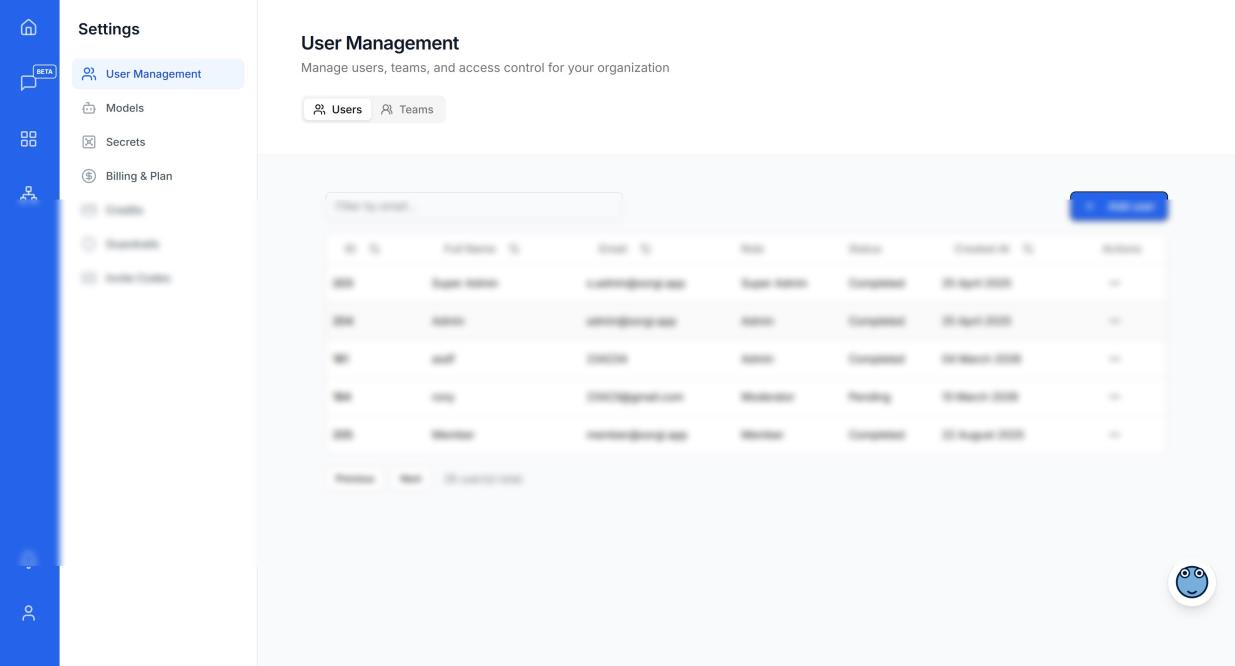
The User Management page allows administrators to view all users registered under the organization, manage their roles, monitor their account status, and add new users to the platform.
4.1.1 User Roles
Sorgi implements a three-tier role-based access control (RBAC) model. Each role determines what the user can access, create, and manage within the platform:
| Role | Responsibilities & Access |
|---|---|
| Admin | Full access to all platform settings, user management, billing, and AI configuration. The user who creates the organizational account is assigned the Admin role by default. An organization may have multiple Admins. |
| Moderator | Intermediate access level, analogous to a department head. Moderators can manage assistants, routines, and projects within their assigned scope. They cannot access billing settings or invite codes. |
| Member | Standard user access. Members interact with deployed assistants and participate in assigned projects and tasks. They do not have access to administrative settings or AI configuration tools. |
4.1.2 Adding Users
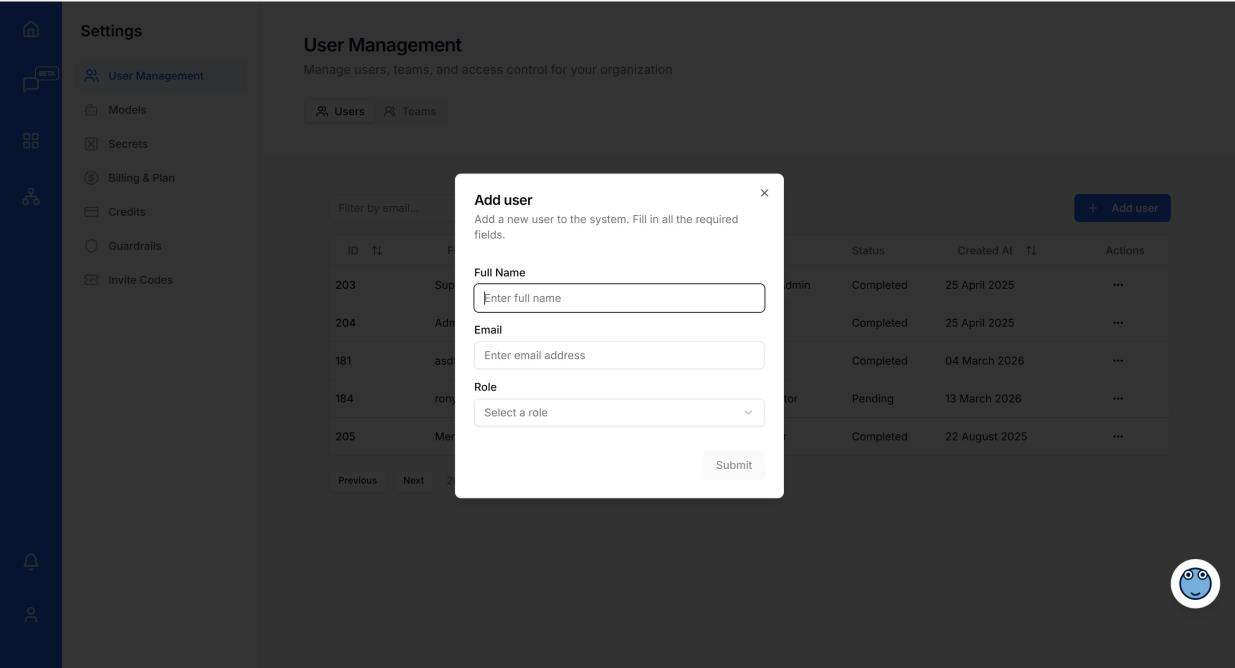
To add a new user to the platform, click the + Add user button in the top-right corner of the User Management page. A dialog will appear requesting the following information:
- Full Name: The user's display name within the platform.
- Email: The user's business email address. An invitation will be sent to this address.
- Role: Select Admin, Moderator, or Member from the dropdown.
Upon submission, the user will receive an email with instructions to complete their registration. Their status in the user list will display as Pending until they complete the registration process, at which point it will update to Completed.
4.2 Models
The Models section allows administrators to view and activate the AI language models available on the platform.
Sorgi is model-agnostic by design, supporting simultaneous deployment across multiple large language model providers including:
- OpenAI
- Anthropic
- Google Gemini
- Meta (via hosted providers)
- Groq
- And others
Administrators can enable or disable specific models for use within their organization's assistants and routines.
4.3 Secrets Vault
The Secrets section provides access to Sorgi's integrated secrets management system. All API keys, credentials, and integration tokens required by connected AI providers and third-party integrations are stored here in an encrypted vault.
- Credentials are never stored in plain text.
- Credentials are never exposed in agent outputs or logs.
- Credentials are rotated according to configurable policies.
- To activate a language model or an integration, the relevant API key or credential must first be added to the Secrets vault.
This ensures that sensitive credentials remain protected at all times, even as they are consumed by automated workflows and AI agents.
4.4 Guardrails
The Guardrails section allows administrators to define and enforce organization-wide content and behavior policies that apply to all AI assistants and agents deployed on the platform. These are policy-level controls — they persist across all interactions and cannot be overridden by end users through conversational prompts.
Sorgi includes a set of built-in guardrail policies that can be toggled on or off:
- No Self-Harm Encouragement
- No Violence and Hate Speech
- No Illegal Drugs
- No Sexual Content
- No Criminal Planning
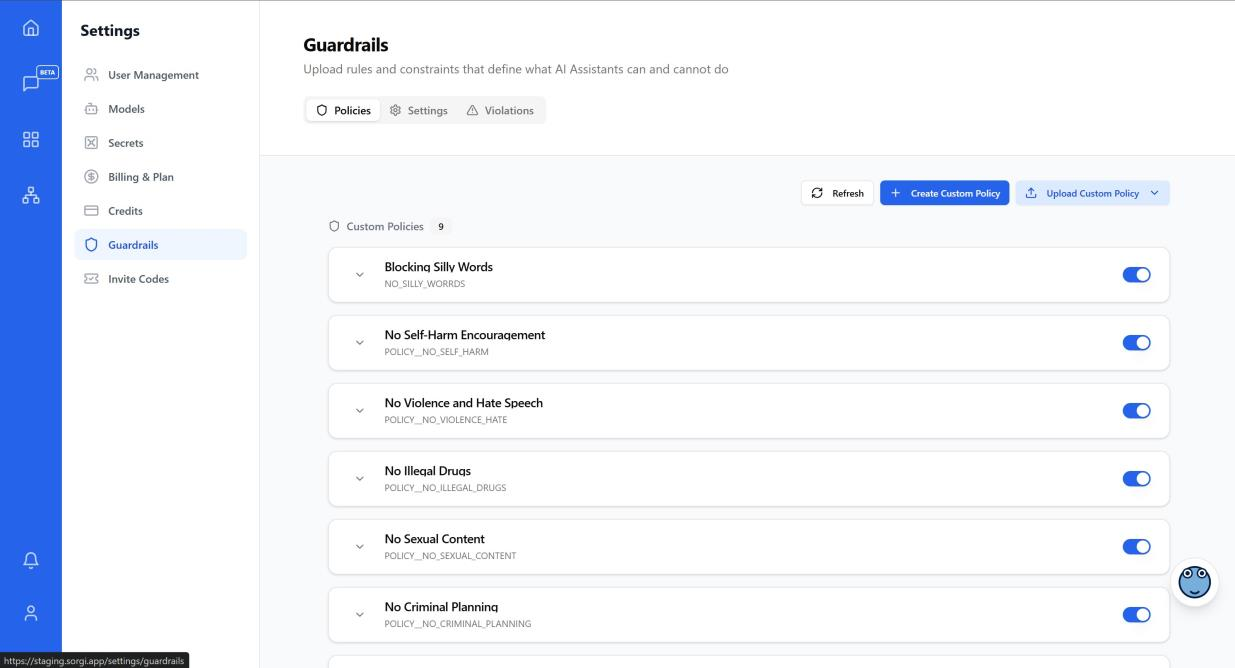
Administrators can also create custom policies tailored to their organization's requirements. Each policy is identified by a name and a policy code, and can be enabled or disabled individually.
Custom policies (such as domain-specific restrictions or terminology filters) can be created using the + Create Custom Policy button or uploaded in bulk via the Upload Custom Policy option.
The Guardrails section also includes a Violations tab, which logs any instance where an AI assistant's output was flagged against an active policy, providing a full audit trail of guardrail enforcement across the organization.
4.5 Billing & Plan and Credits
- Billing & Plan: Displays your current subscription tier and allows administrators to upgrade or modify the plan.
- Credits: Provides a detailed transaction history of credit consumption, enabling finance teams to track AI usage costs at a granular level.